
This facility allows a search to be performed of Note records for a membership. This enables the Administrator to view communications between any person and a company.
Note:
This is currently limited to the Call me back functionality used when a person is attempting to register on the member web for a scheme requiring an ID number or Passport number.
For more information refer to
My Work
Process SR
Web Registration
Member Website
Single Password Access
Accessing the Web Site (using ID/Passport number)
First-time Registration (using ID/Passport number)
This functionality may also be selected via Clients > Communication
For more information refer to
Clients
Communication
When you select MY WORK from the main functionality menu, the following menu is displayed at the top.
Select Communication from the main menu on top.
The JU1JT Notes Search Criteria screen will be displayed.
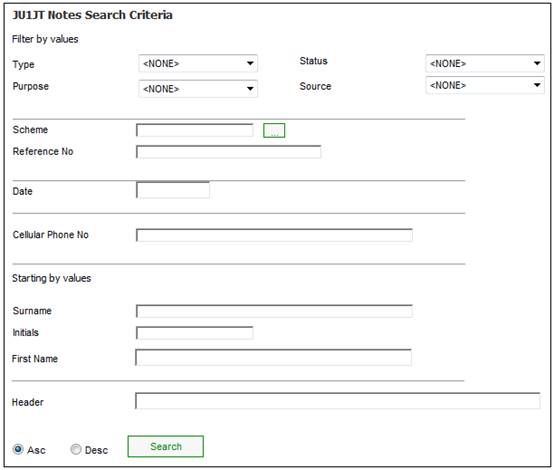
In order to search for Notes for a member, capture data as follows:
|
Type |
The type of note that is required. Select a value from the drop-down list.
E.g. Web Page Enquiry. |
|
|
Status |
The status of the note. Select a value from the drop-down list. Values are currently: Completed, Outstanding or Pending. |
|
|
Purpose |
The general purpose of the note. Select a value from the drop-down list. Examples: Inbound, Information, Internal or Outbound. Note: The note will not be displayed on the Report to the Employer if a value of Internal is selected. |
|
|
Source |
The source of the note. Select a value from the drop-down list. Examples: Bulk Load, External, Letter, Phone Call etc. |
|
|
Scheme |
The scheme code. |
|
|
Reference No |
The member’s reference number |
|
|
Date |
The date on which the note is captured. |
|
|
Cellular Phone No |
The cellular phone number of the member. |
|
|
Starting by values |
||
|
Surname |
The surname of the member. |
|
|
Initials |
The initials of the member. |
|
|
First Name |
The first name of the member. |
|
|
Header |
A short description of the note. |
|
Click SEARCH.
The system will find the Note records with the combination of data matching the criteria selected / captured and they will be displayed on the JU1JT List of Notes screen.
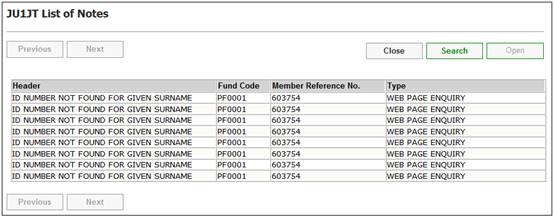
To view the contents of a note highlight a record and click OPEN.
The JU1JT Note Details screen will display the note details.
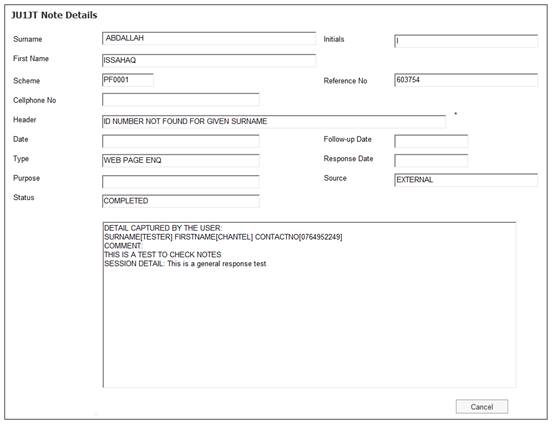
For further information refer to
My Work
Process SR
Web Registration
My Work
Process SR
Communication